1 / 10 / 2025

3 mins tutorial: Prepare CFD cases in Chopmesh

Introduction

This tutorial provides a step-by-step workflow for CFD analysis, covering geometry modeling, meshing, boundary condition setup, CFD export, e.g. to Fluent..

Modeling
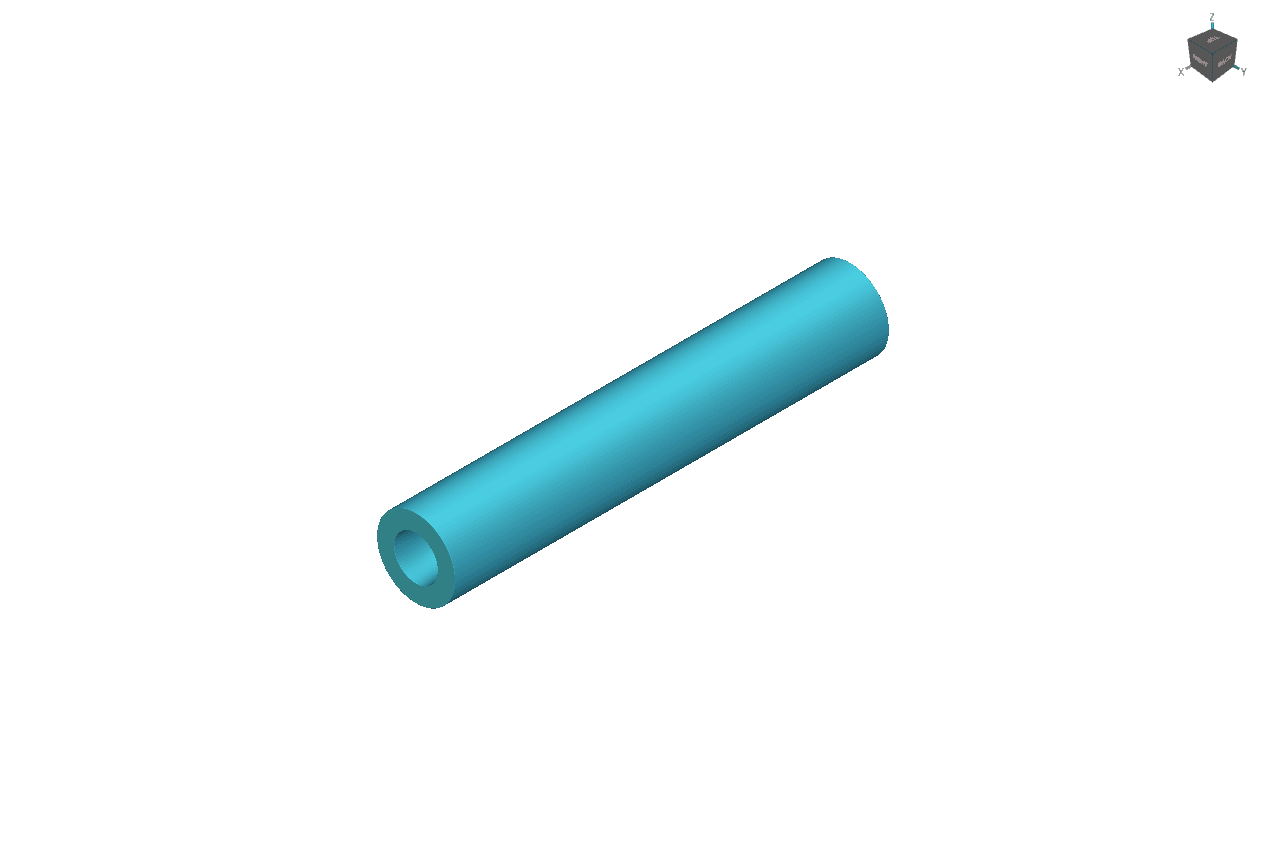
Cold Fluid
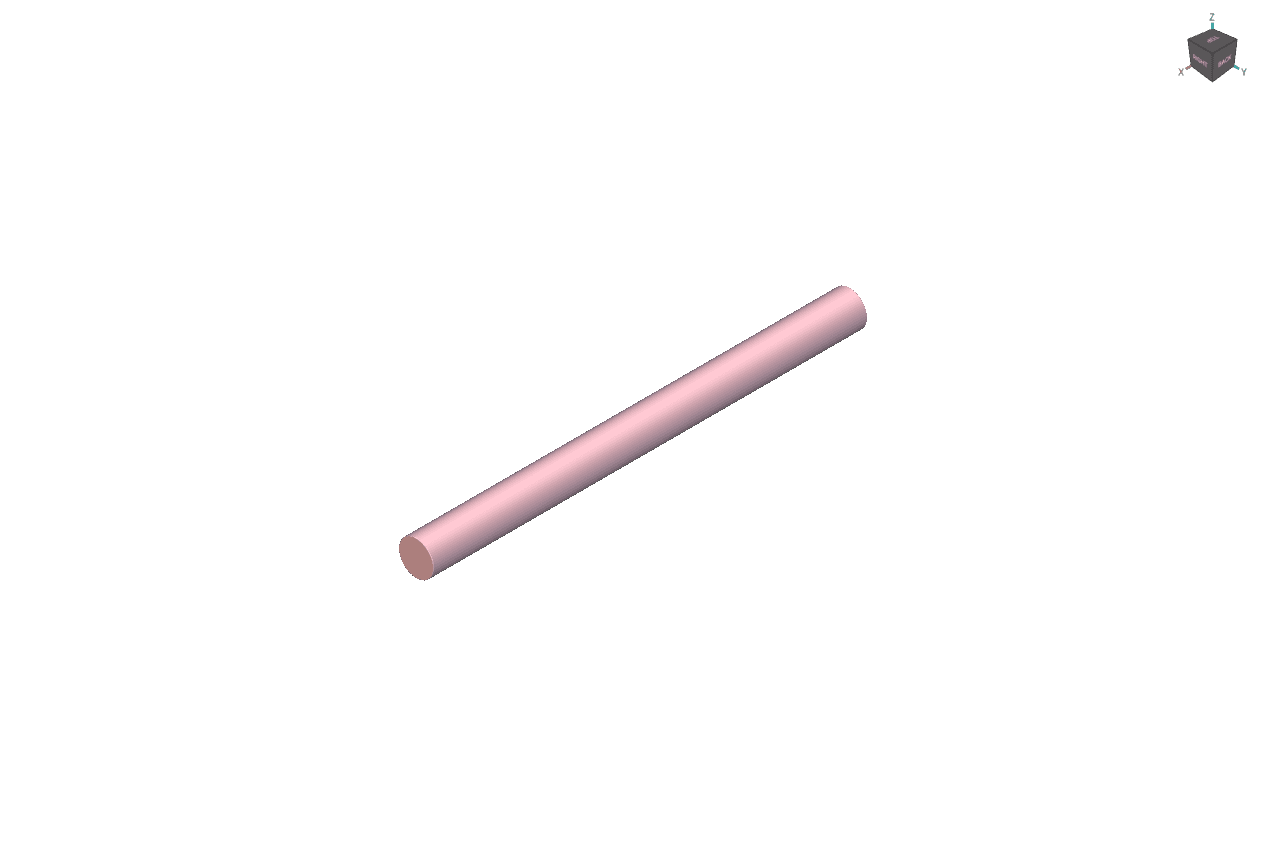
Hot Fluid
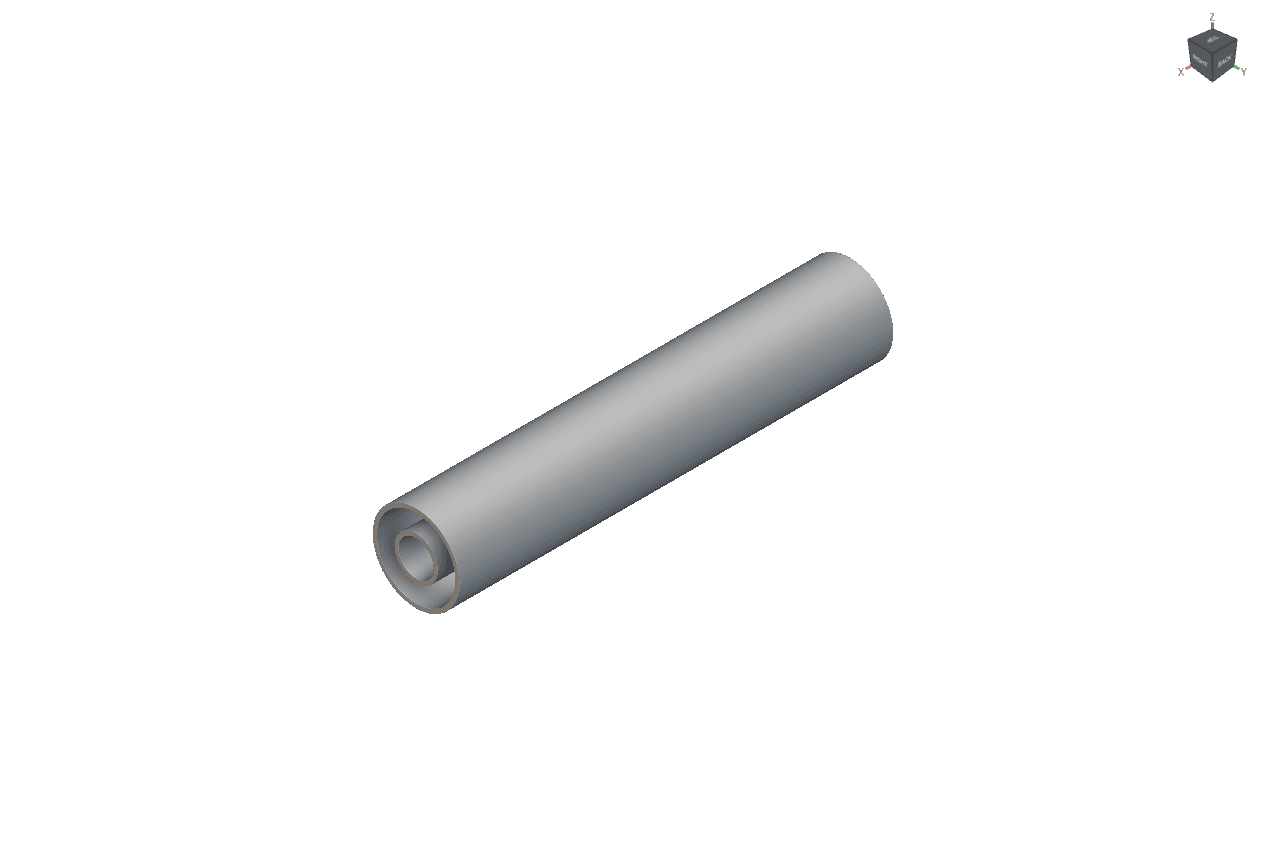
Solid

Chop mesh Interface
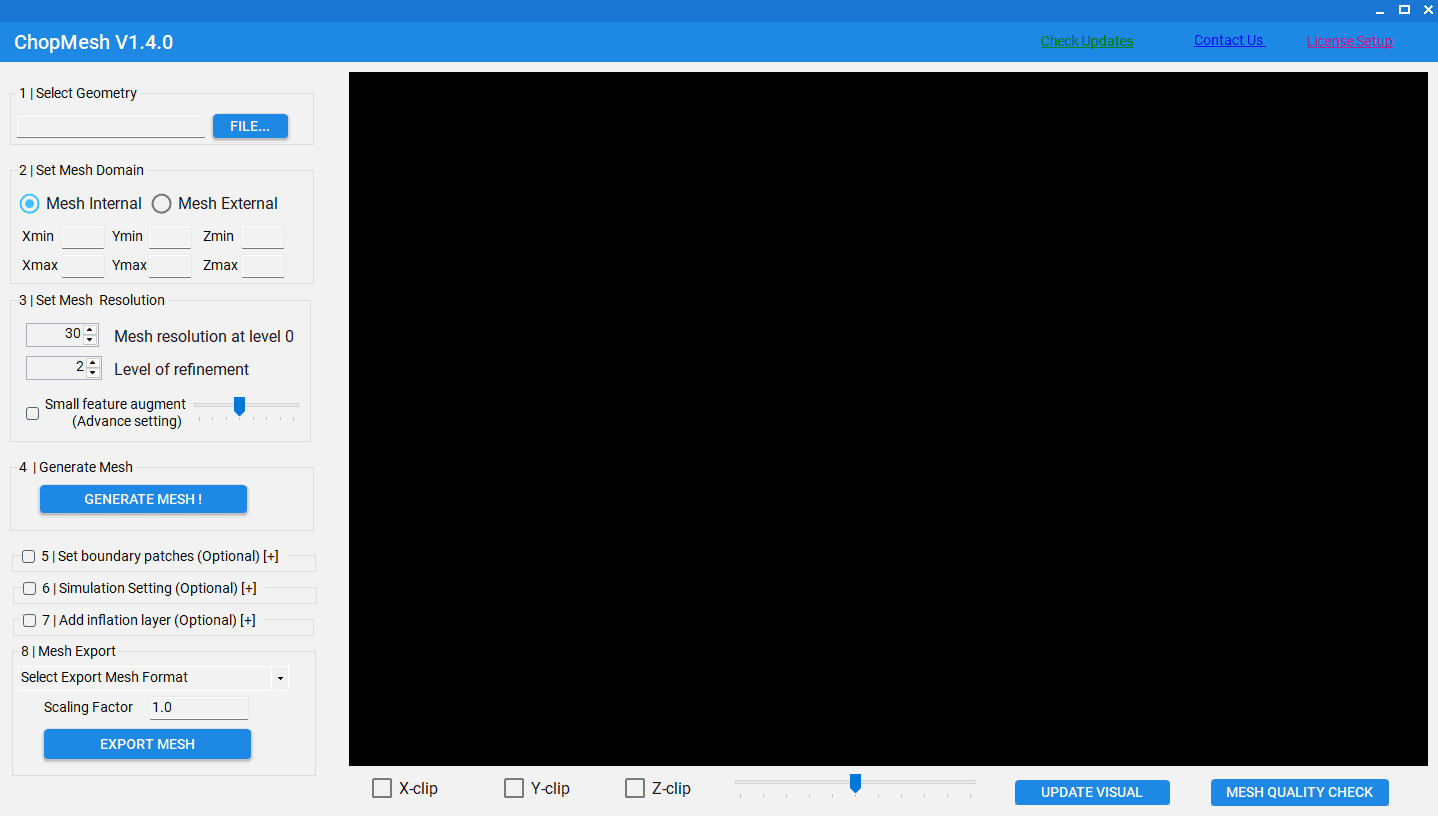
ChopMesh Component Functions

  1. Select Geometry: Import geometric files (stl, vdb, implicit)

  2. Set Mesh Domain: Set calculation domain range

  3. Set Mesh Resolution:

    1. Mesh resolution at level 0: controls the base grid coarseness (higher value = finer mesh).

    2. Level of refinement: controls local mesh refinement(0-6)

    3. Small feature augment: adjusts the treatment of small features.

  4. Generate Mesh: Generate the mesh with the chosen settings.

  5. Set Boundary Patches: Define boundary zones (e.g., inlet, outlet, wall, symmetry).

  6. Simulation Setting: Predefine solver-related settings (like fluid type, turbulence model).

  7. Add Inflation Layer: Add boundary-layer mesh near walls.

  8. Mesh Export: Export mesh in the desired format

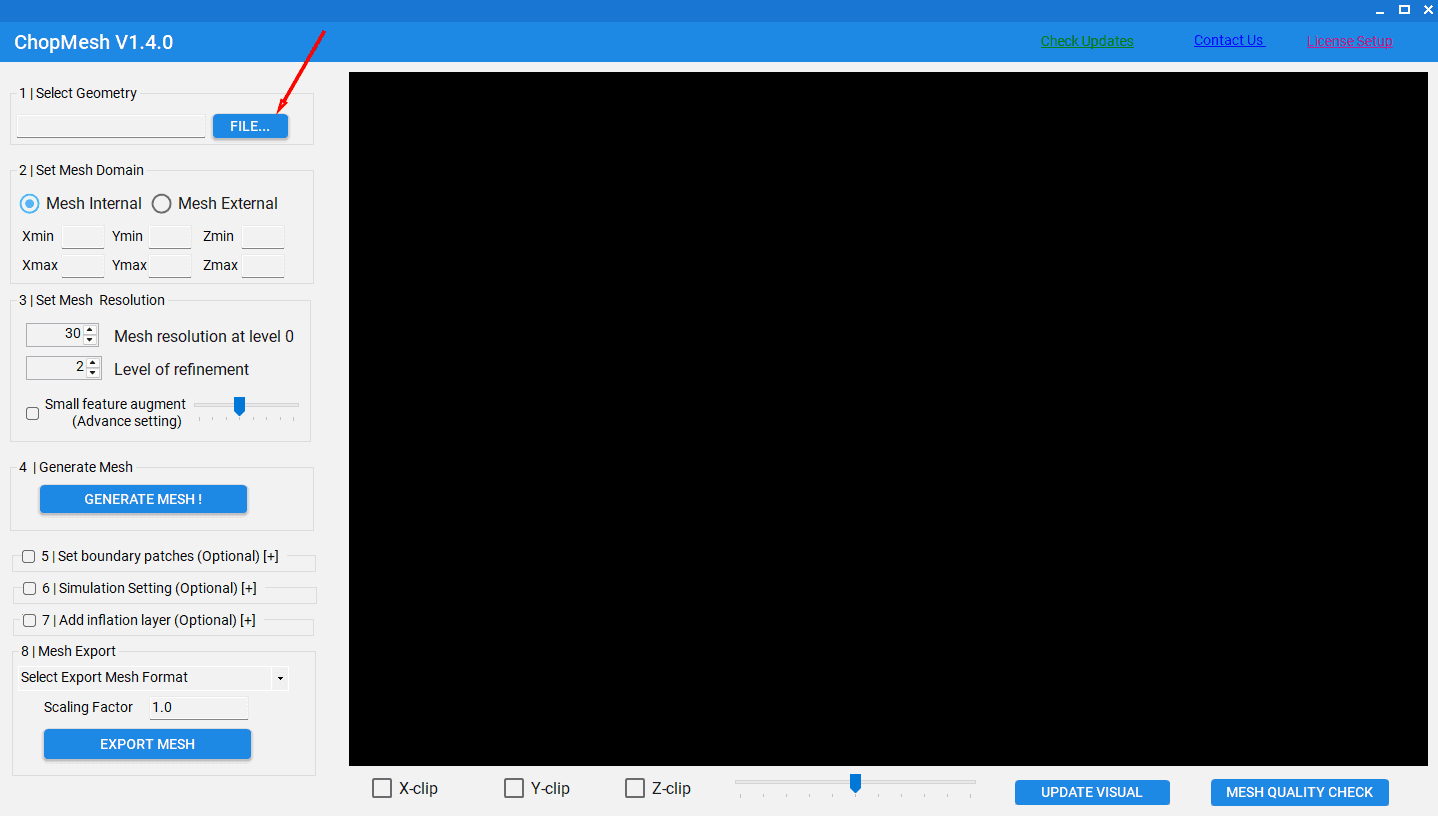
Select gemometry
Mesh generation
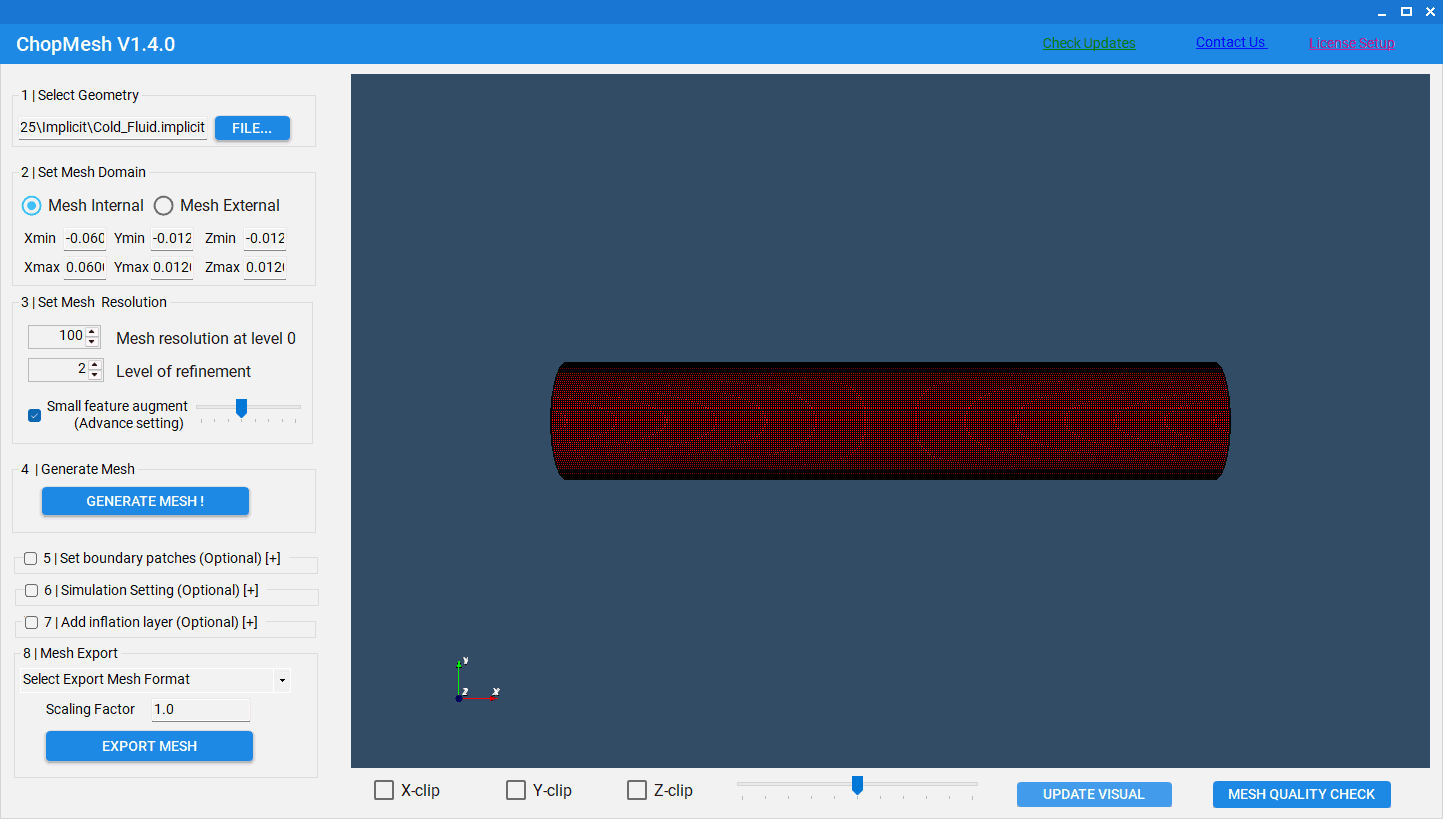
After importing the geometry file, you need to select the correct internal mesh or external mesh option, then adjust the mesh resolution settings. Once these parameters are defined, simply click Step 4: Generate Mesh to create the computational grid.

Boundary patch

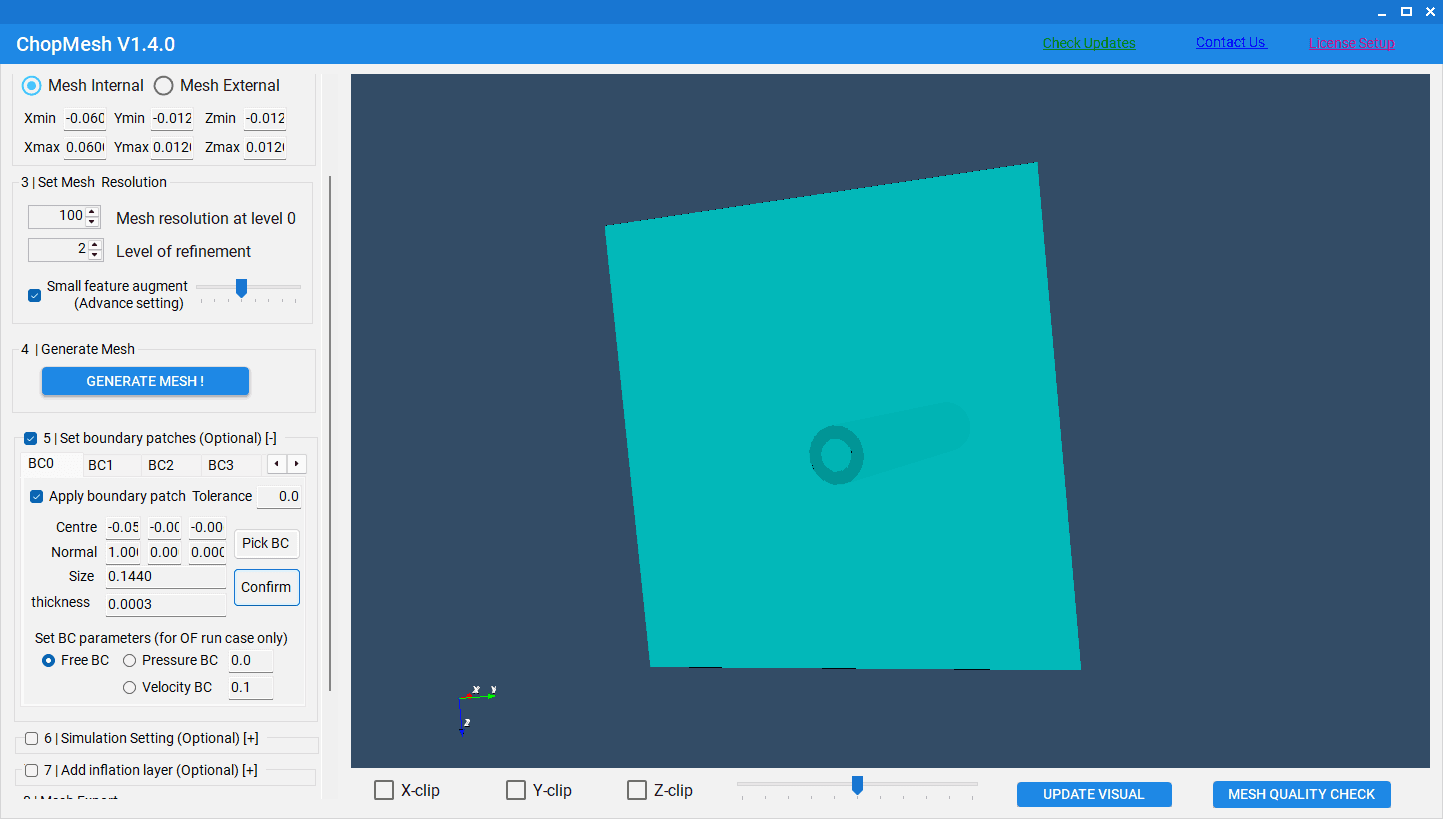
The next step is Set Boundary Patches. First, open this option and click Apply Boundary Patch Tolerance. Then, click Pick BC and select any point on the surface you want to assign. Finally, click Confirm to complete the boundary patch definition.
Mesh Export
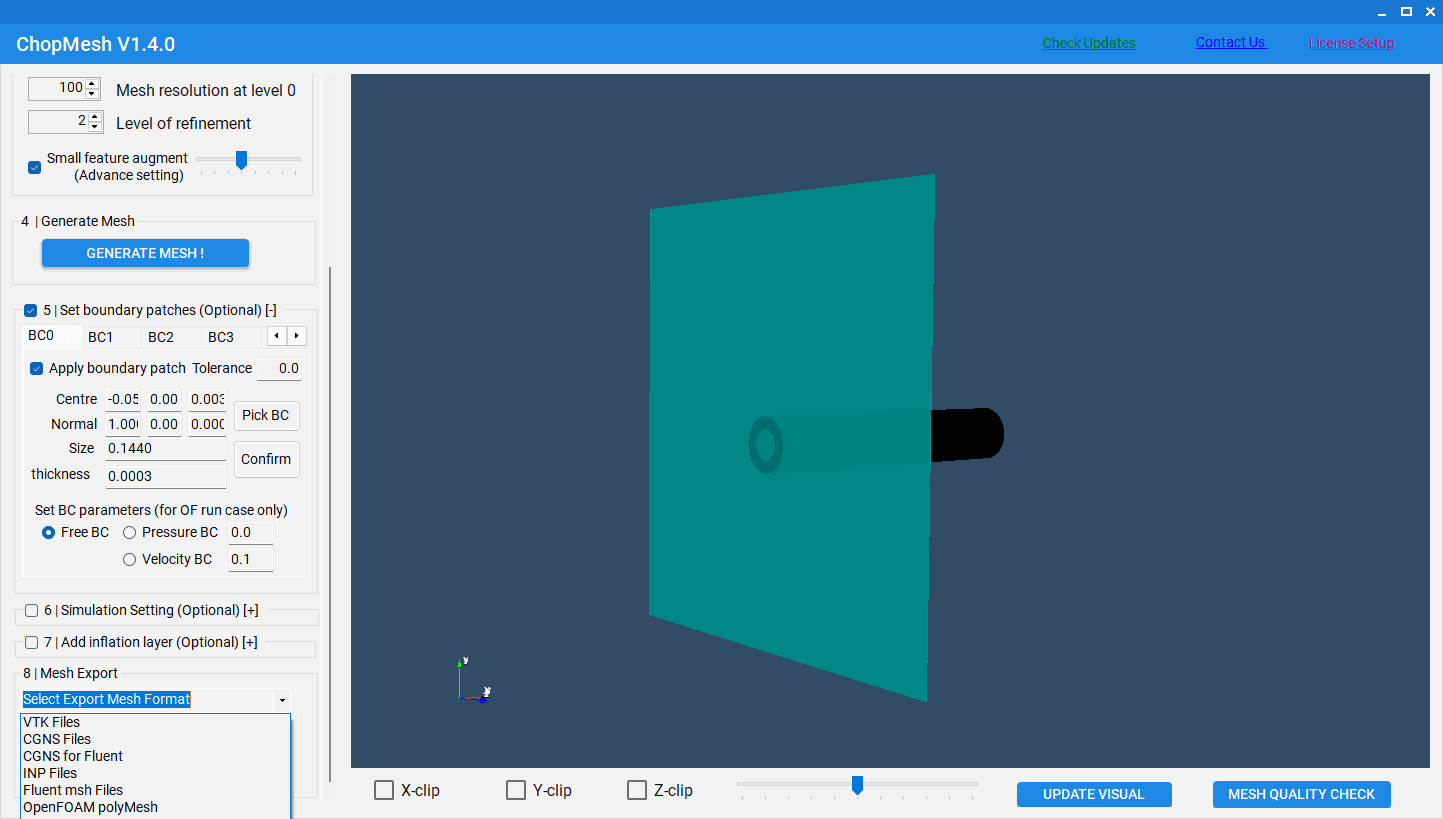
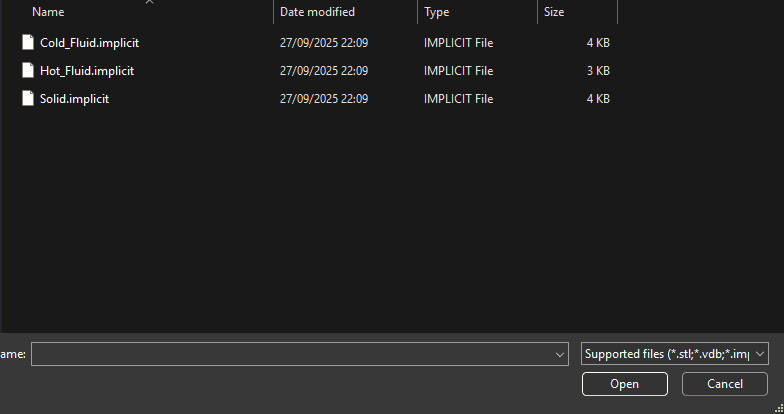
After completing all the required steps, proceed to Mesh Export. In the Select Export Mesh Format option, choose the desired format for your mesh.

Script - Step By step

; Set Fluent TUI version

/file/set-tui-version "Version"

; Read Mesh and Append Mesh

/file/read-mesh "<PATH_TO_FINAL_MESH>"

/mesh/modify-zones/append-mesh "<PATH_TO_COLD_MESH>"

; Enable energy equation

/define/models/energy yes

; Set model

/define/models/viscous/laminar yes

; Load materials

/define/materials/copy solid "<Name of Material>"

/define/materials/copy fluid "<Name of Material>"

; define cell zone types and assign materials

; After importing the main mesh file, Fluent automatically assigns the first region as solid-3, with subsequently imported meshes named sequentially as solid-3.1, solid-3.1.1, and so on.

/define/boundary-conditions/zone-type "<Name of zone>" solid

/define/boundary-conditions/zone-type "<Name of zone>" fluid

/define/boundary-conditons/Solid "<Name of zone>" copper

/define/boundary-conditions/fluid "<Name of zone>" water-liquid

; Set boundary types

; When boundaries are selected from ChopMesh, they are recognized as wall_patch_0, wall_patch_1, wall_patch_2; for the second imported mesh, if boundaries are also selected, they are automatically renamed as wall_patch_0.1, wall_patch_1.1, wall_patch_2.1, and so on.

/define/boundary-conditions/zone-type "<Name of boundary condition>" velocity-inlet

/define/boundary-conditions/zone-type "<Name of boundary condition>" pressure-outlet

; Set velocity inlet

/define/boundary-conditions/velocity-inlet/set "<Name of boundary condition>" yes yes no no no no no <VELOCITY_MAGNITUDE> no no <TEMPERATURE>

; Automatically creat mesh interfaces

/define/mesh-interfaces/auto-create yes

; Initialisation

/solve/initialize/initialize-flow

; Run iterations

/solve/iterate <ITERATION_COUNT>

; Save final results

/file/write-case-data "<RESULT_PATH>"

Results

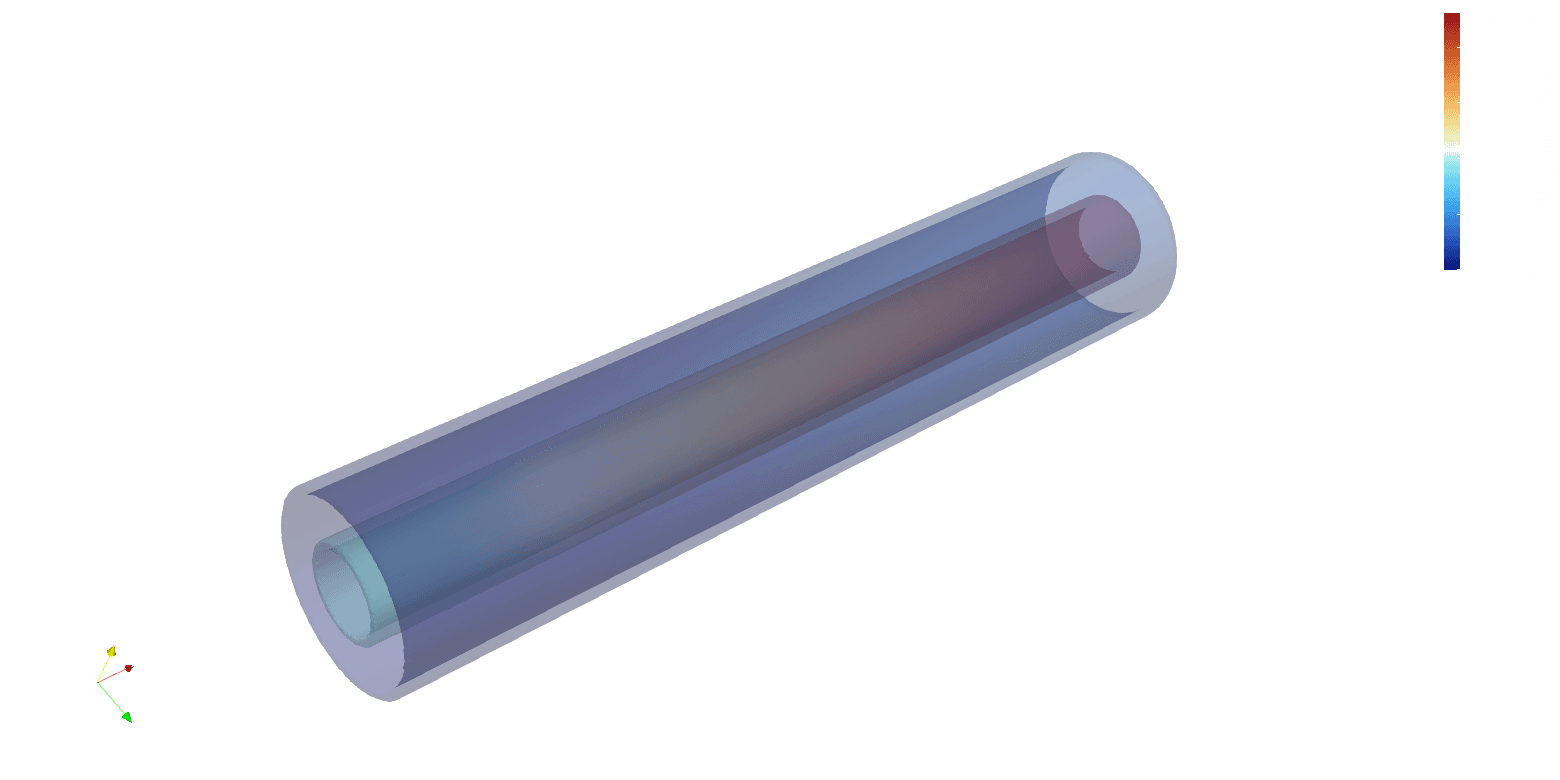
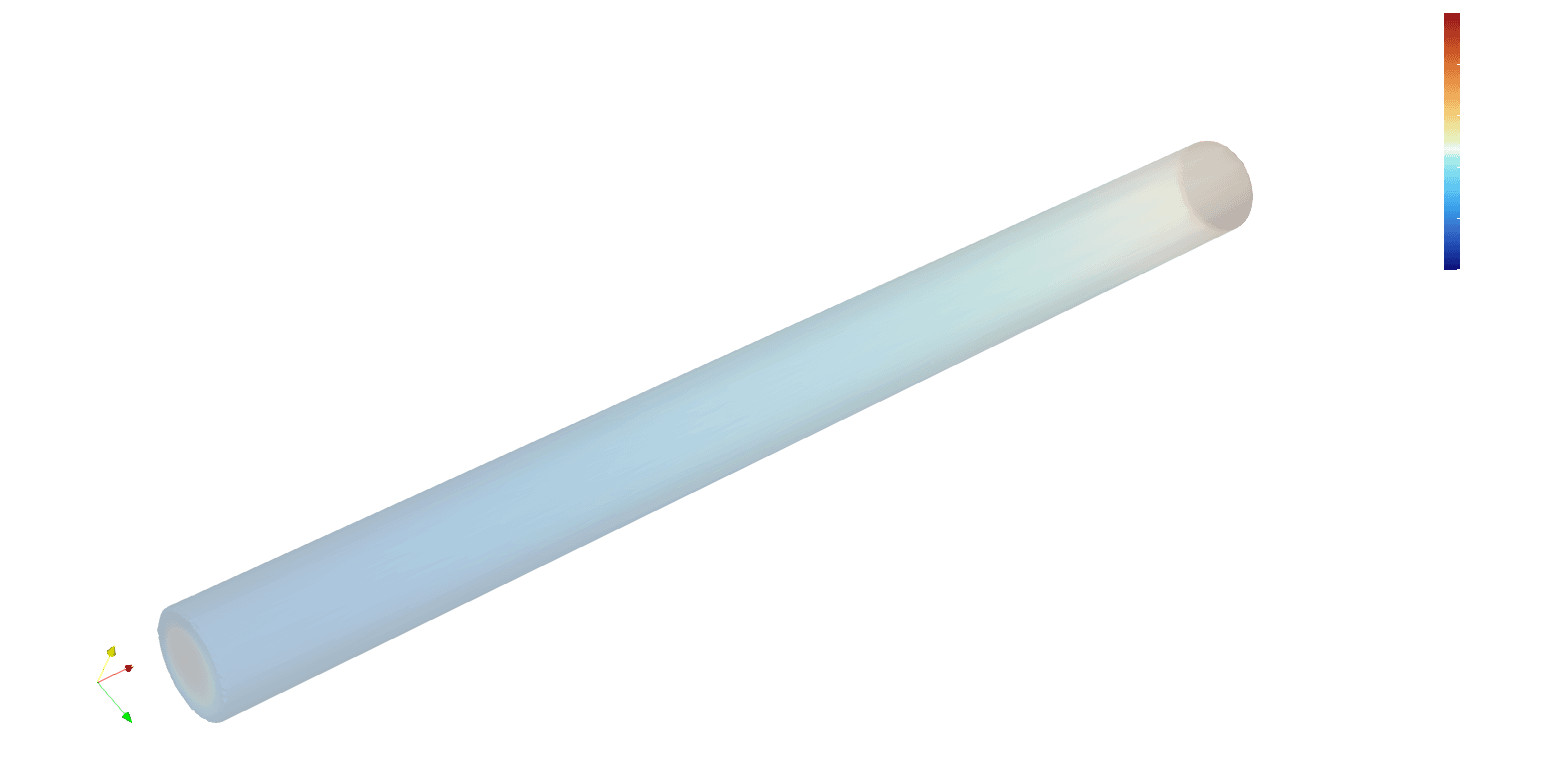
Solid of temperature

Hot Fluid of temperature
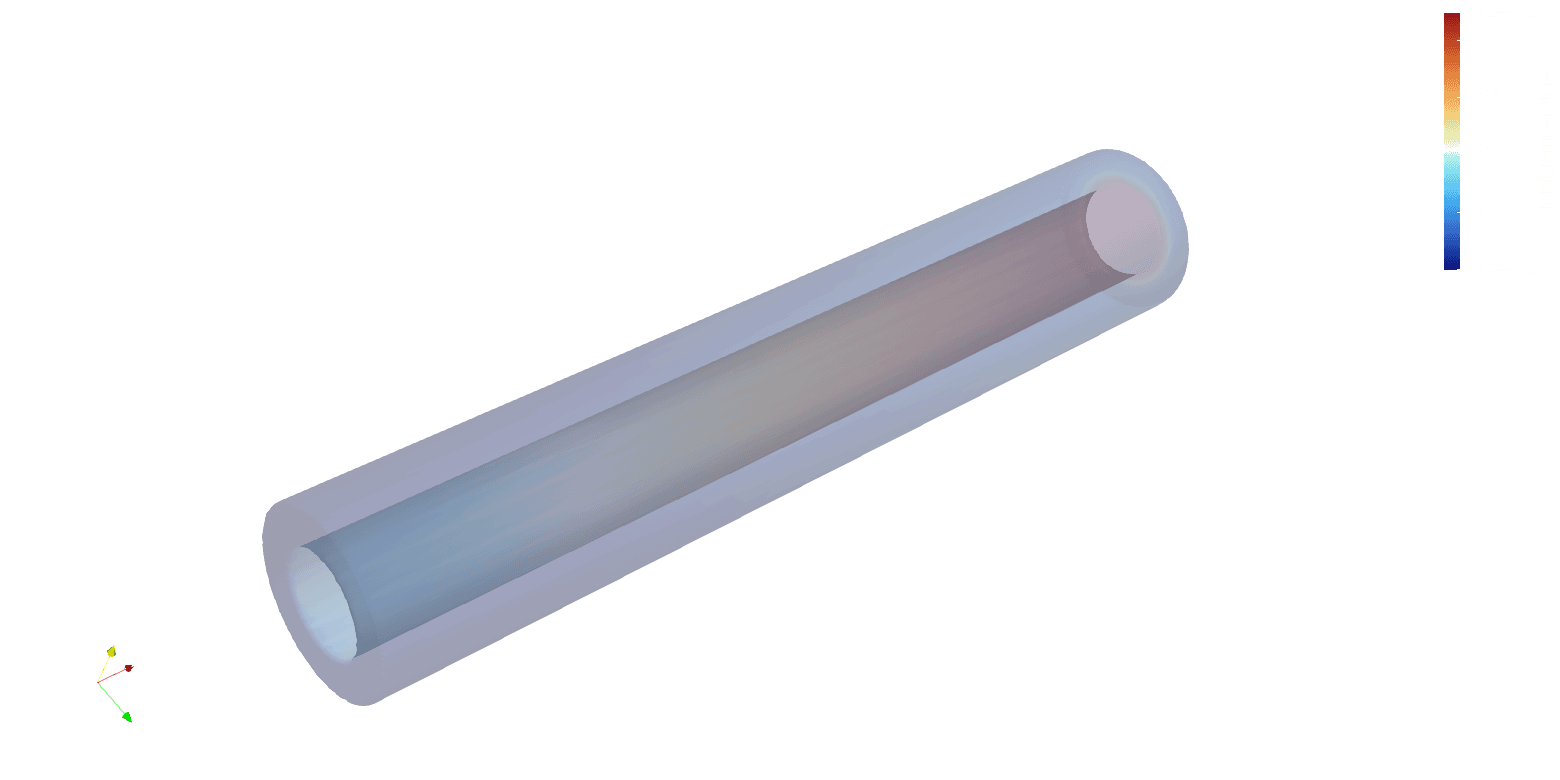
Colid Fluid of temperature

meshing for 3D printing

CONTACT US

info@voxshell.com

Cranfield University Technology Park,Bedford MK43 0BT

Voxshell © 2023-2026.

All rights reserved

meshing for 3D printing

CONTACT US

info@voxshell.com

Cranfield University Technology Park,Bedford MK43 0BT

Voxshell © 2023-2026.

All rights reserved